 OnSite
Try the demo
by Zapro LLC · Brooklyn
One simple app for the whole job, from clock-in to the bill.
OnSite is how the Zapro crew clocks in, sees the job, uses stock and gets every hour billed.
Clock in and out
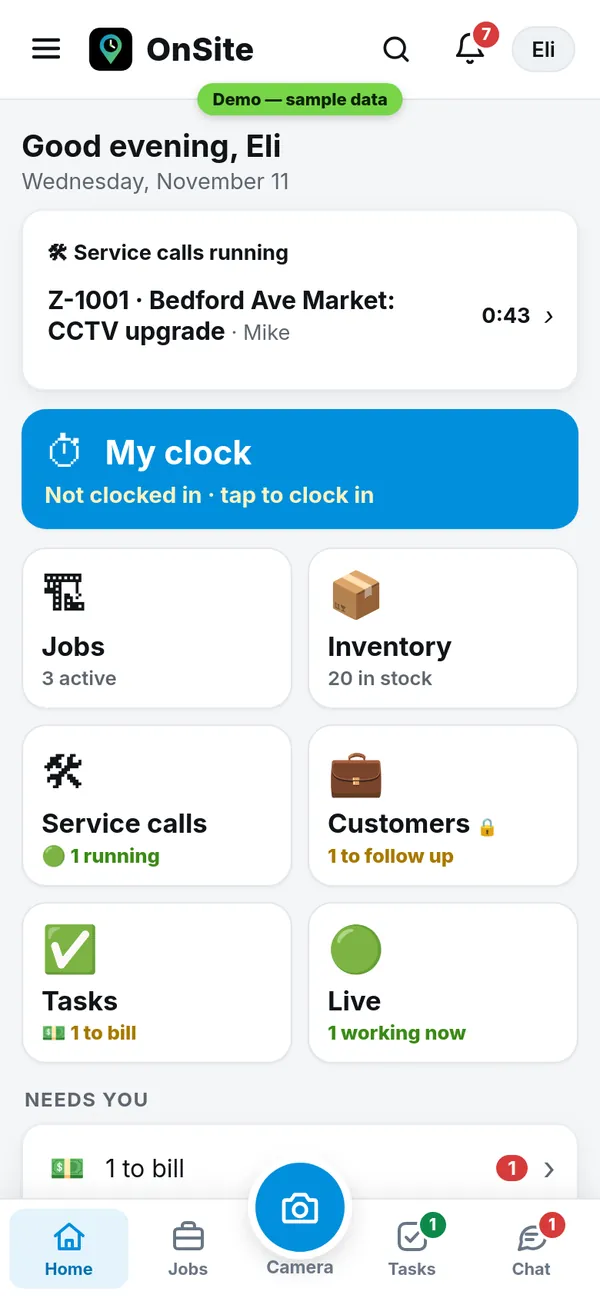
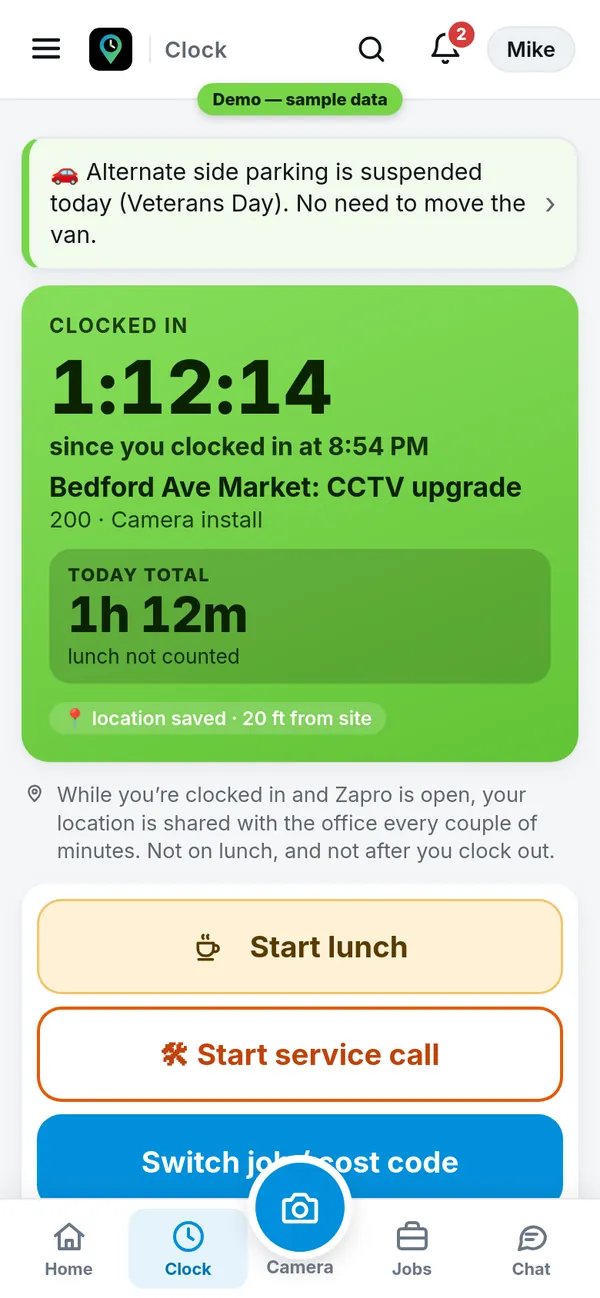
Pick the job and tap Clock in. GPS saves where you are and how far from the site. One tap for lunch, and lunch comes off paid hours.
Jobs with stages
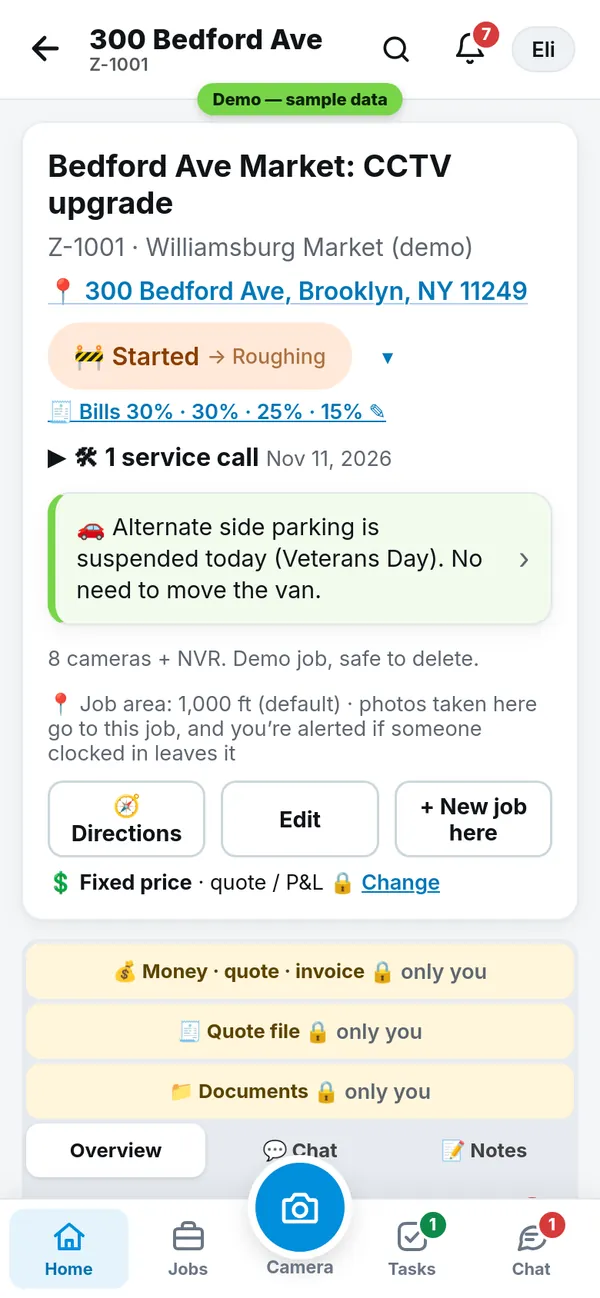
Every job has its own page: address, crew, photos, plans, codes and checklist. A stage bar shows where the job is, from Created to Completed. Back always takes you to the screen you came from, and after you save something you stay right where you were. A new quote or invoice shows a short “Saved · Open” note.
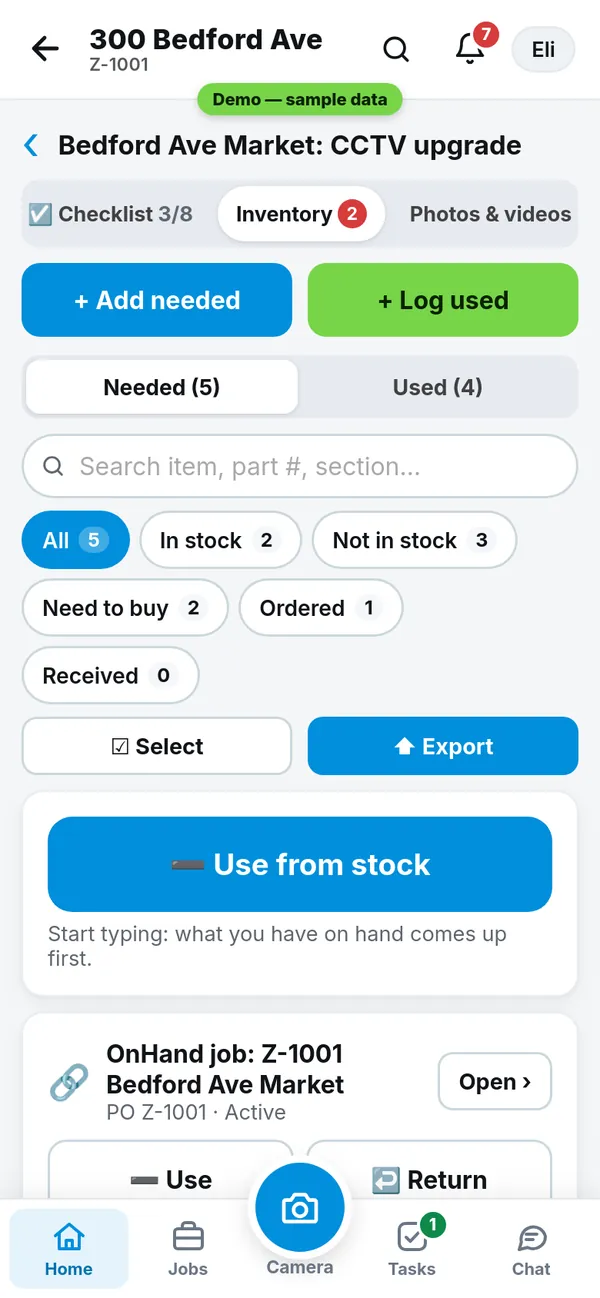
Job inventory, from stock
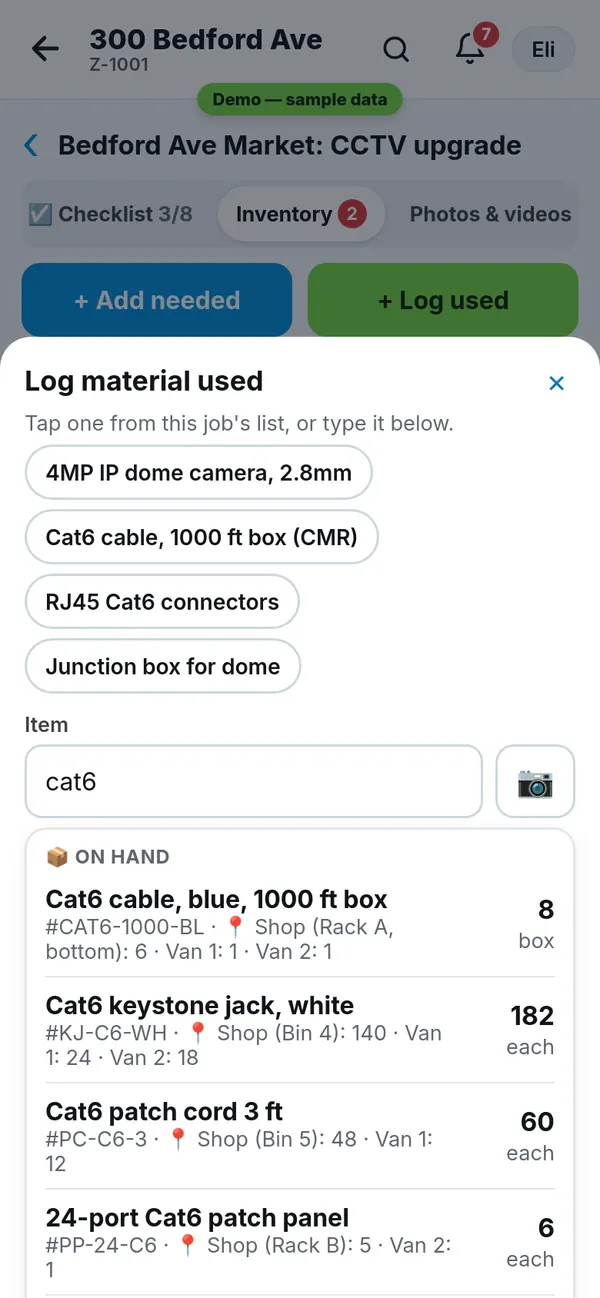
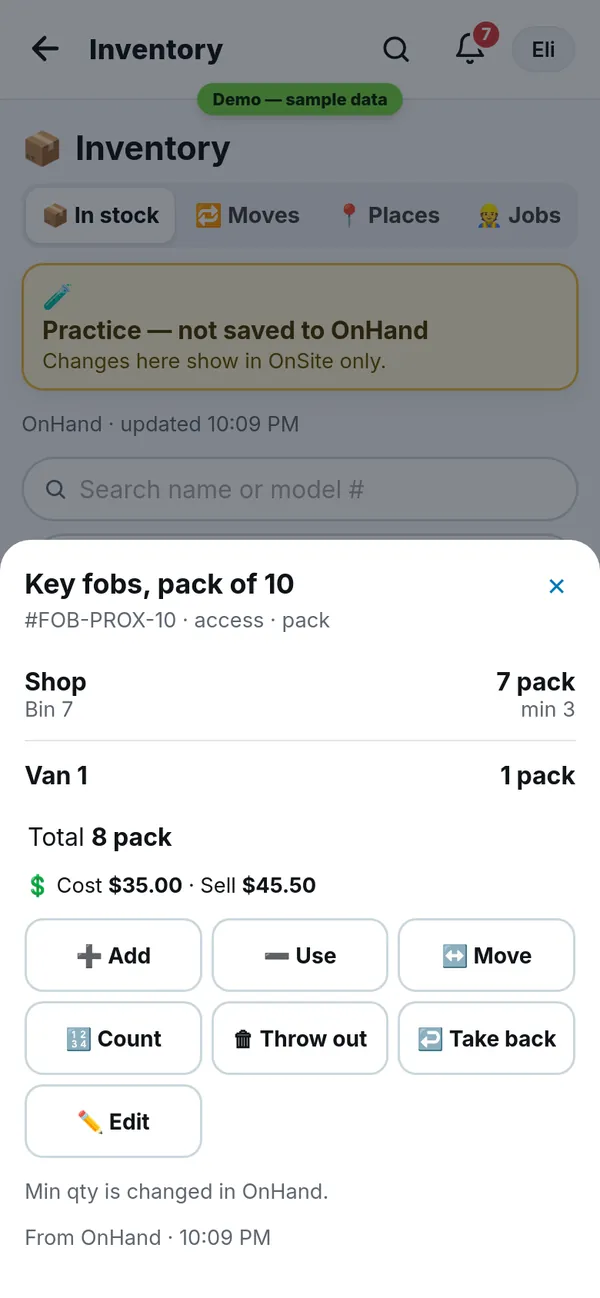
See what a job needs and what was used. Every box where you enter a material, on jobs, service calls, quotes and bills, searches your OnHand stock: type a few letters and it shows how many and where. Pick it and the name, unit and price fill in. Stock only changes after you confirm.
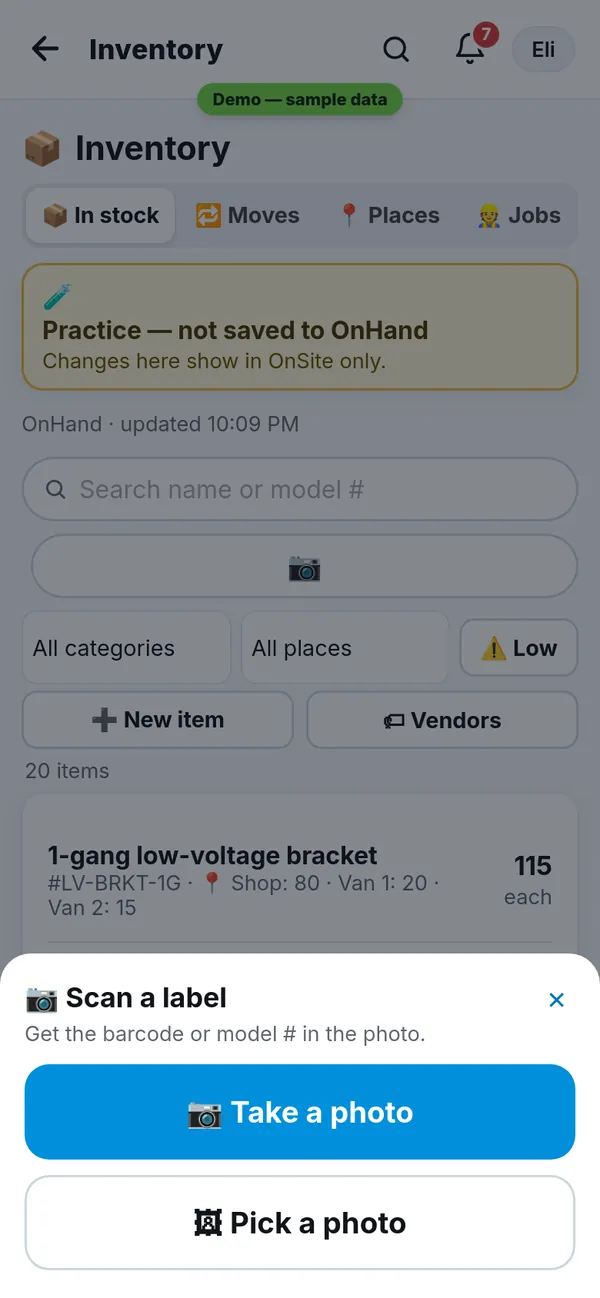
Scan any label
NewTap 📷. Take a photo, or pick one you already have. It reads every barcode on the label and opens the item.
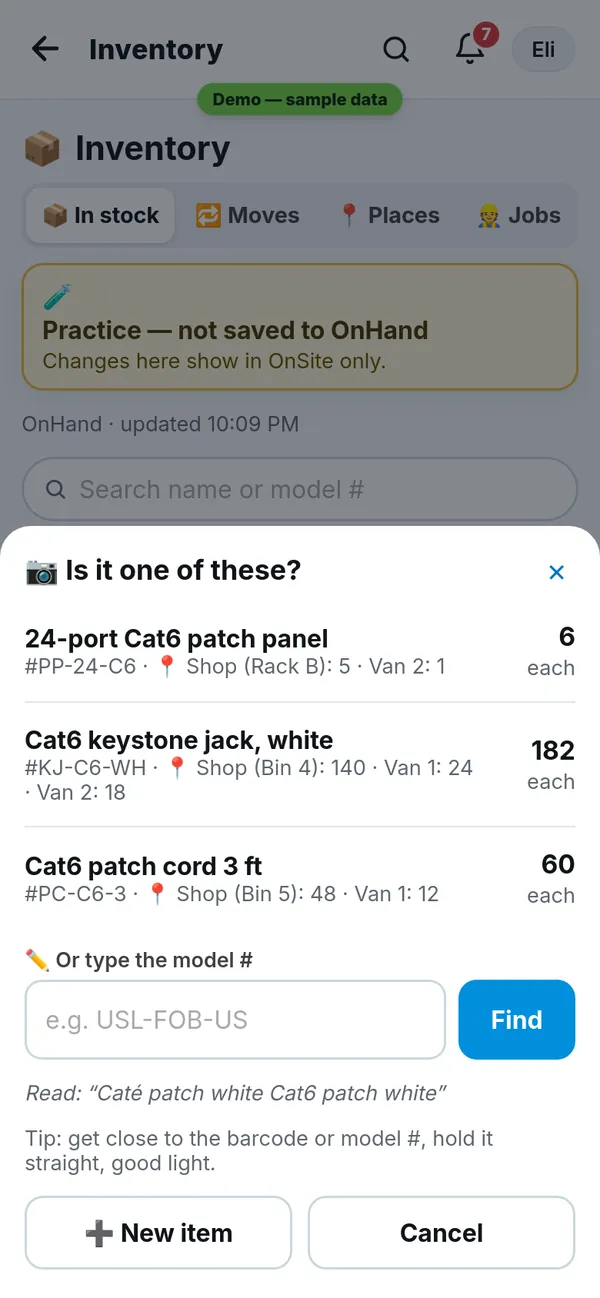
Not sure? It shows its top 3 guesses. One tap picks the right one, or type the model #.
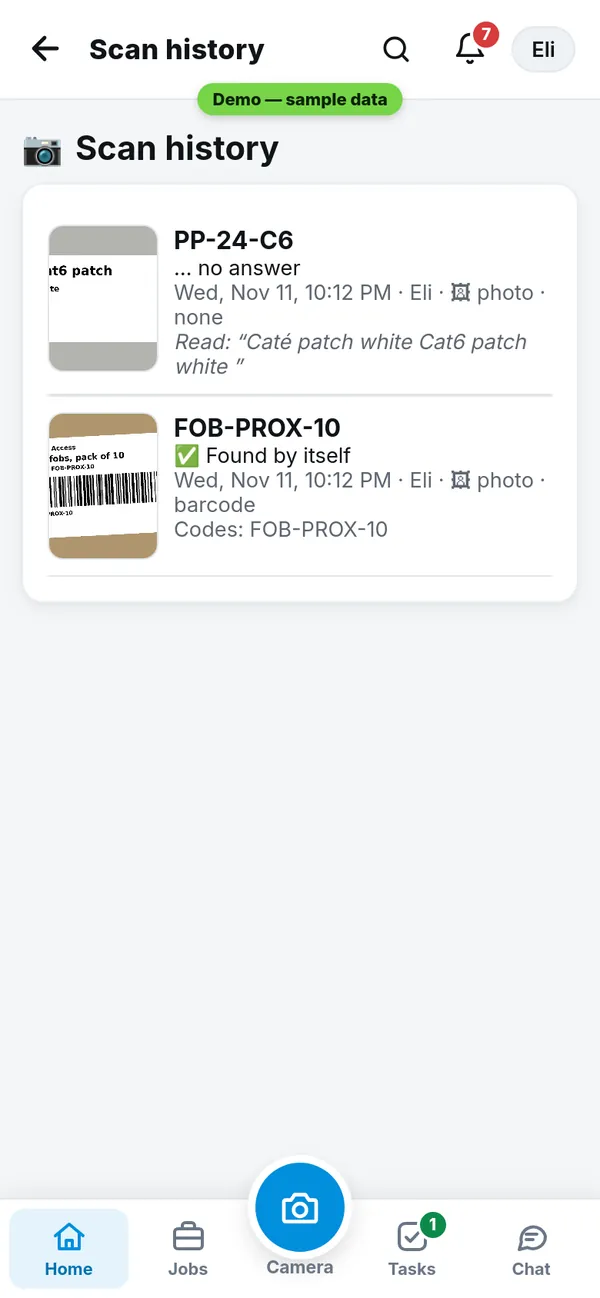
Scan history
NewEvery scan is saved with its photo: what it read, what it found, who scanned and when. Owner only, in Settings.
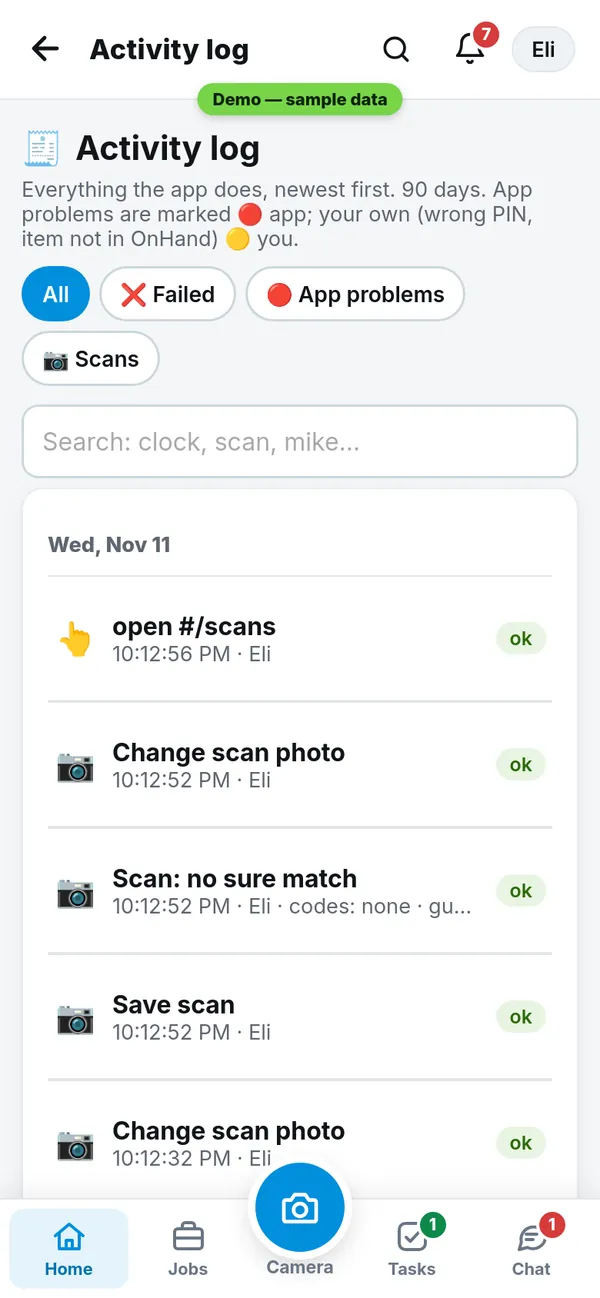
Activity log
NewSee what happened in the app and when: logins, scans, changes and anything that went wrong. Owner only, in Settings.
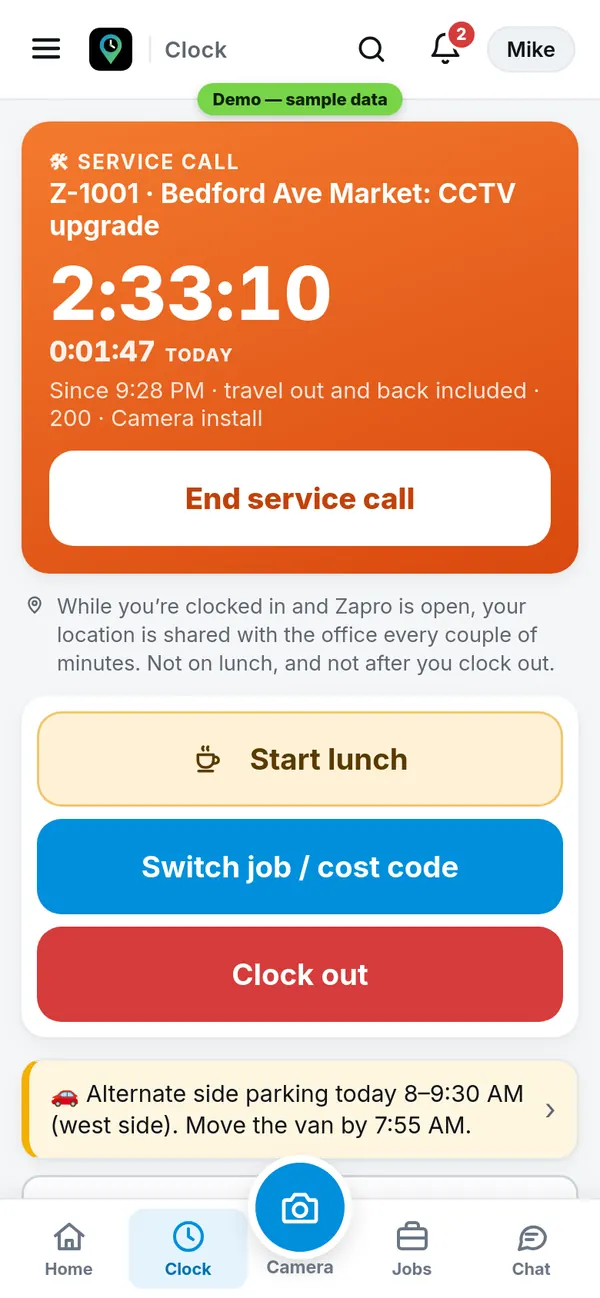
Service calls with rates
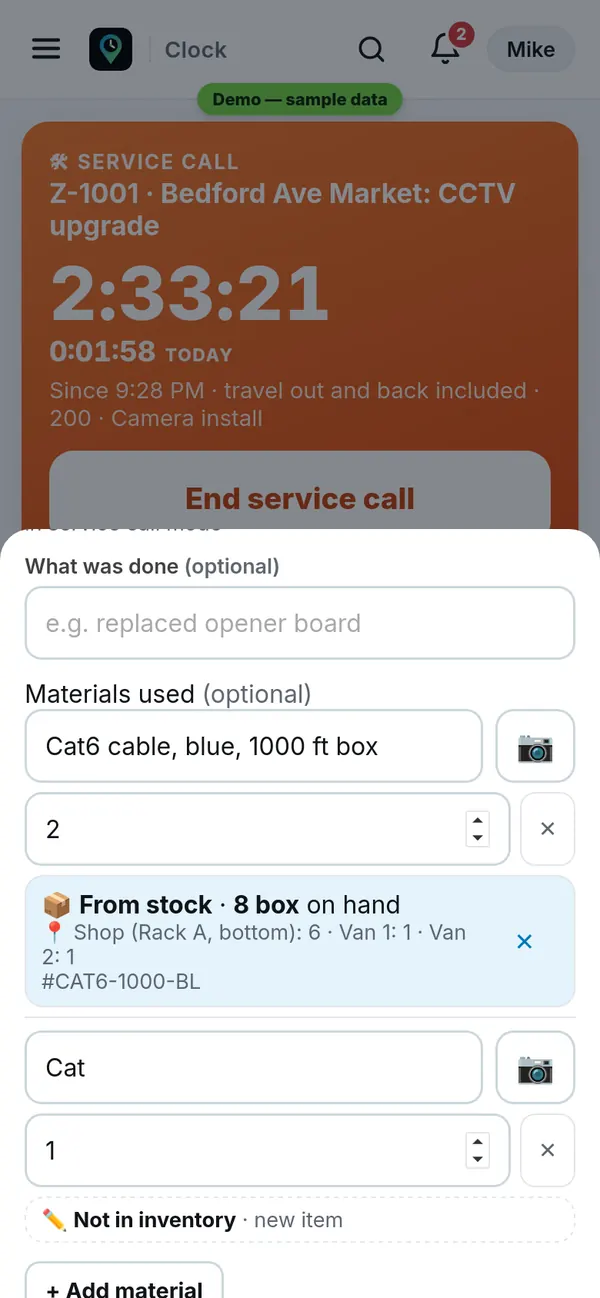
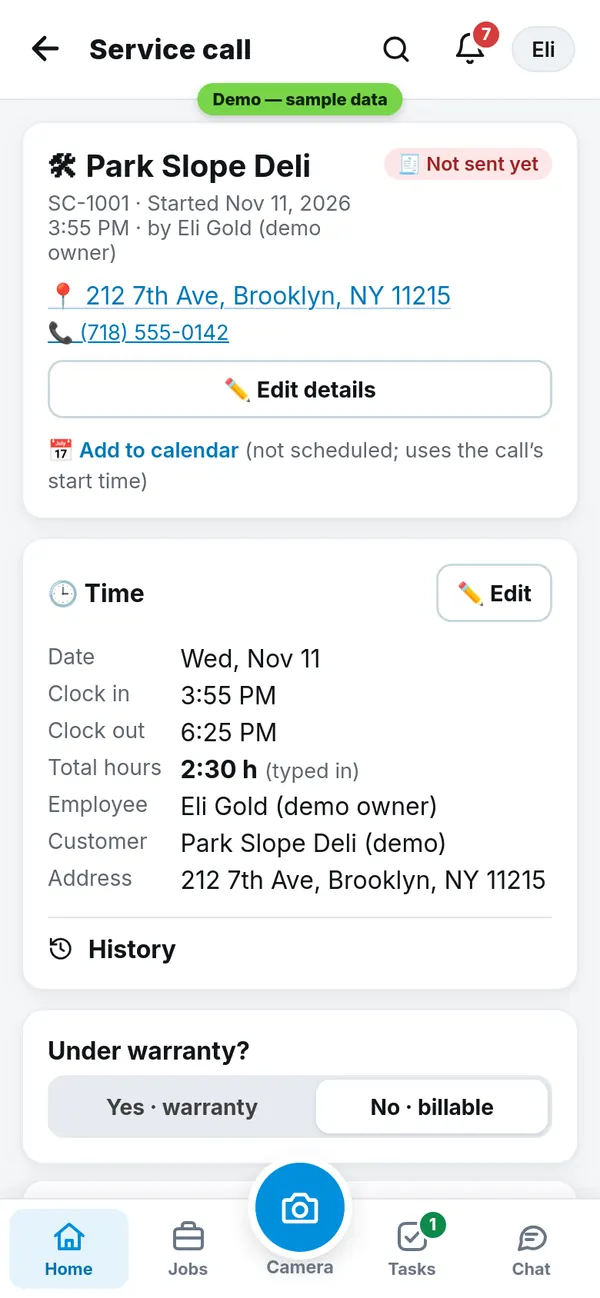
Start a service call when you leave. The clock turns orange and counts travel out and back. When you end it, materials come straight from your OnHand stock with their price; anything typed by hand is marked “Not in inventory”. The office sees the hours, the rate and the total.
To bill
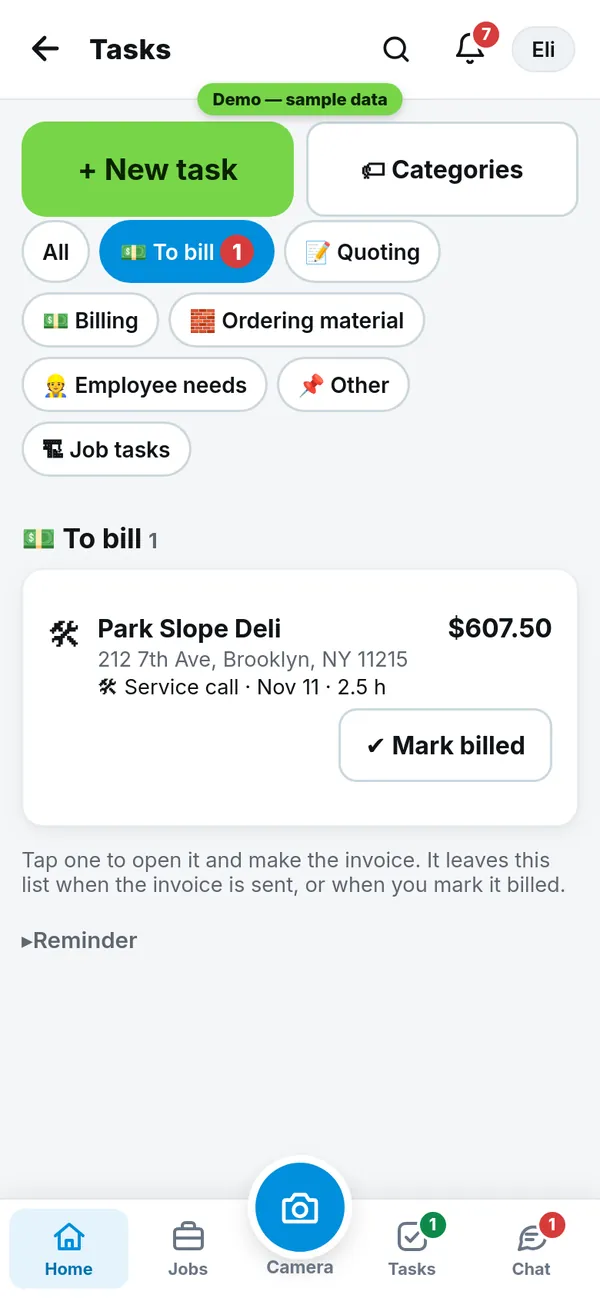
One list of what is done and not billed yet: finished service calls and job stages that are due. Tap one to make the invoice, or mark it billed.
Quotes to PDF to bookkeeper
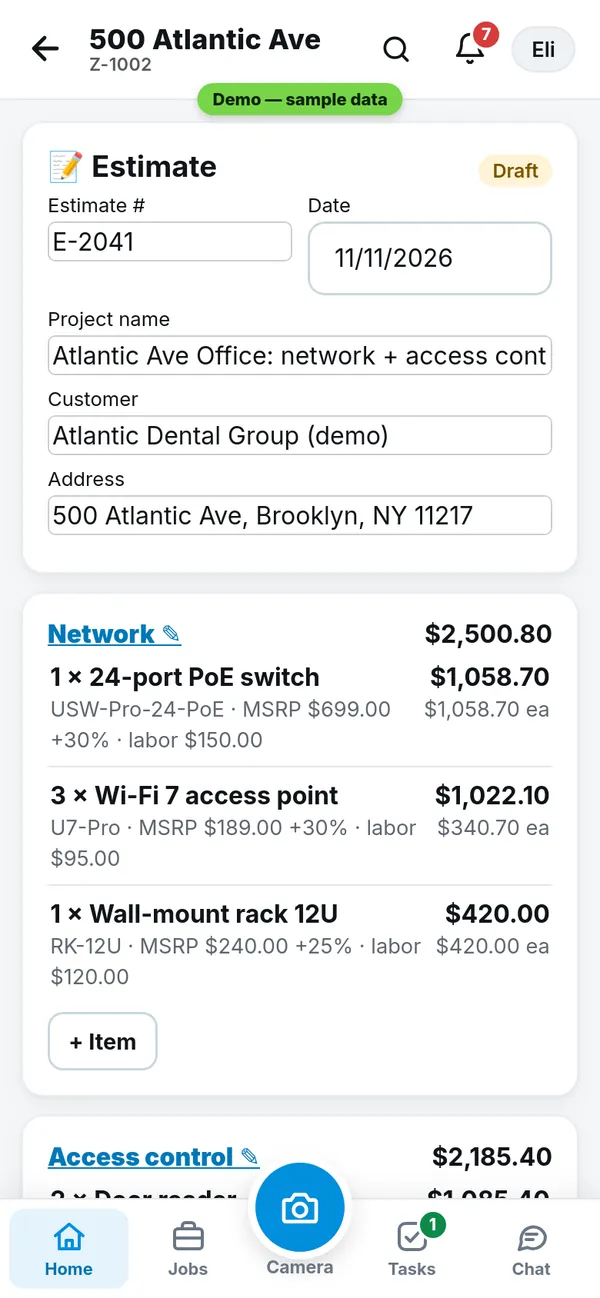
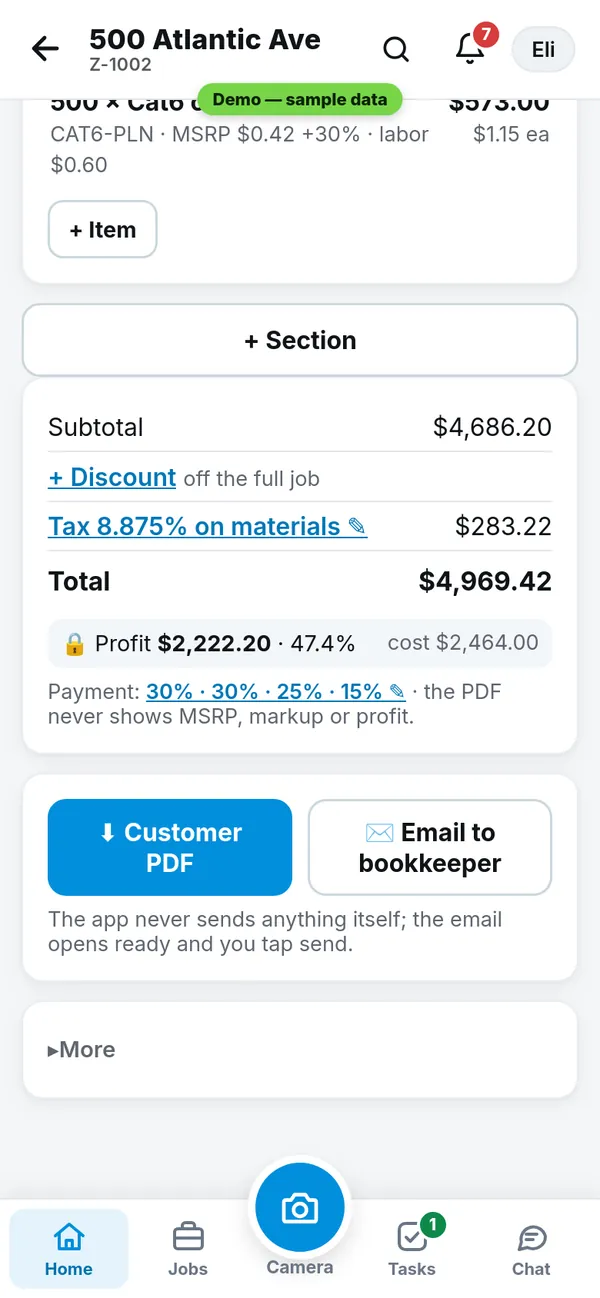
Build a quote line by line. Get a clean customer PDF, then email it to your bookkeeper in one tap. The PDF never shows your cost or profit.
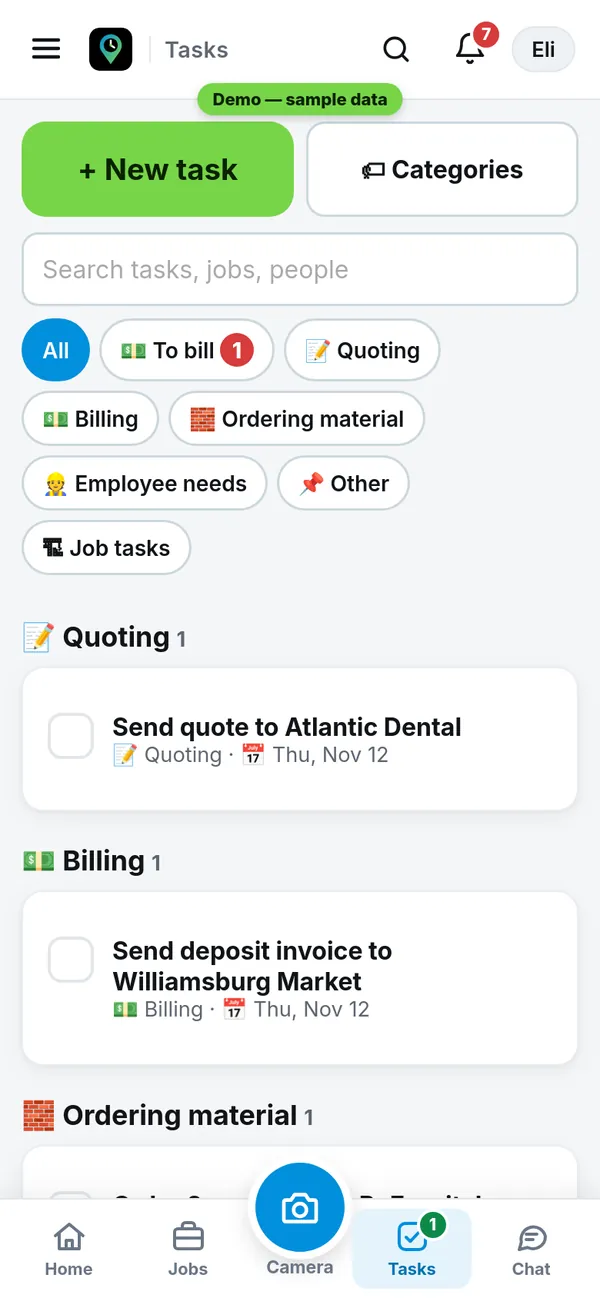
Tasks
To-dos for you and the crew, by type and due date. Bills land here too, so nothing gets missed.
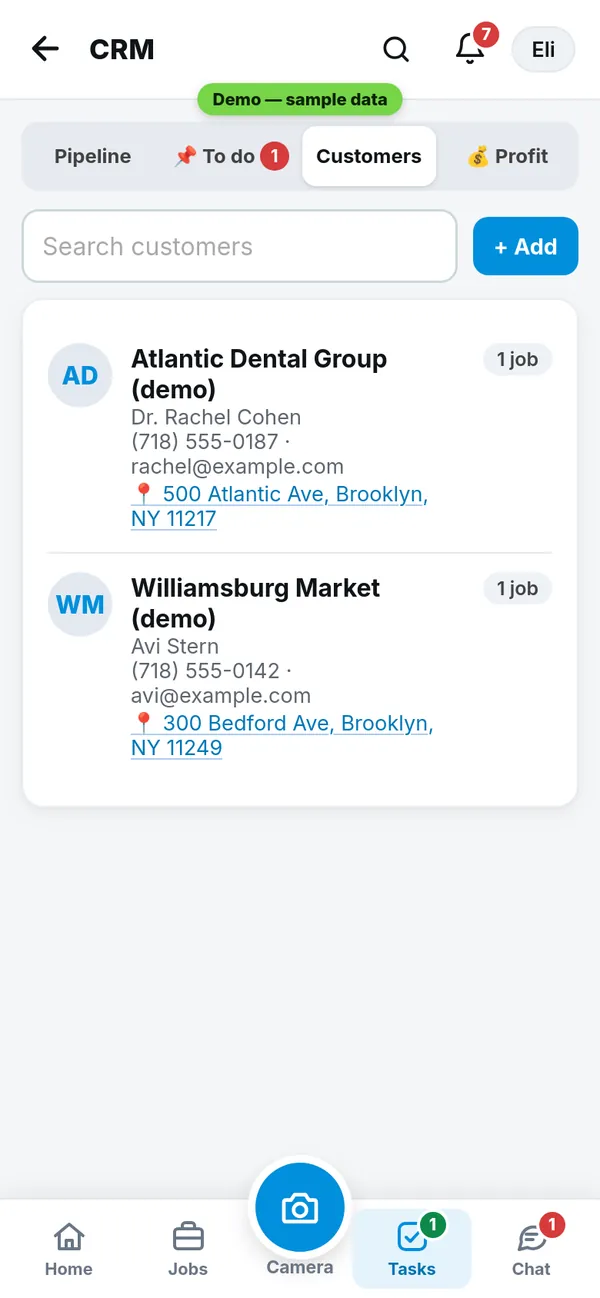
Customers (CRM)
Every customer with phone, email, address and their jobs. See who needs a follow-up.
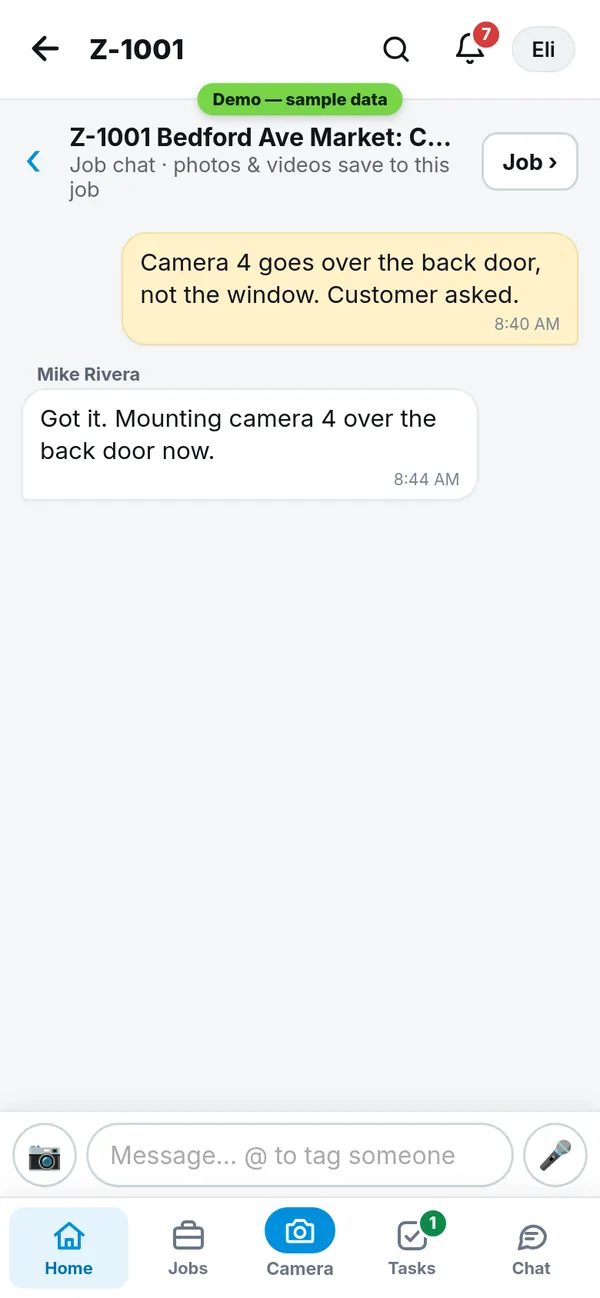
Chat
A team chat and one chat per job. Send text, photos and voice notes. Everyone on the job sees it.
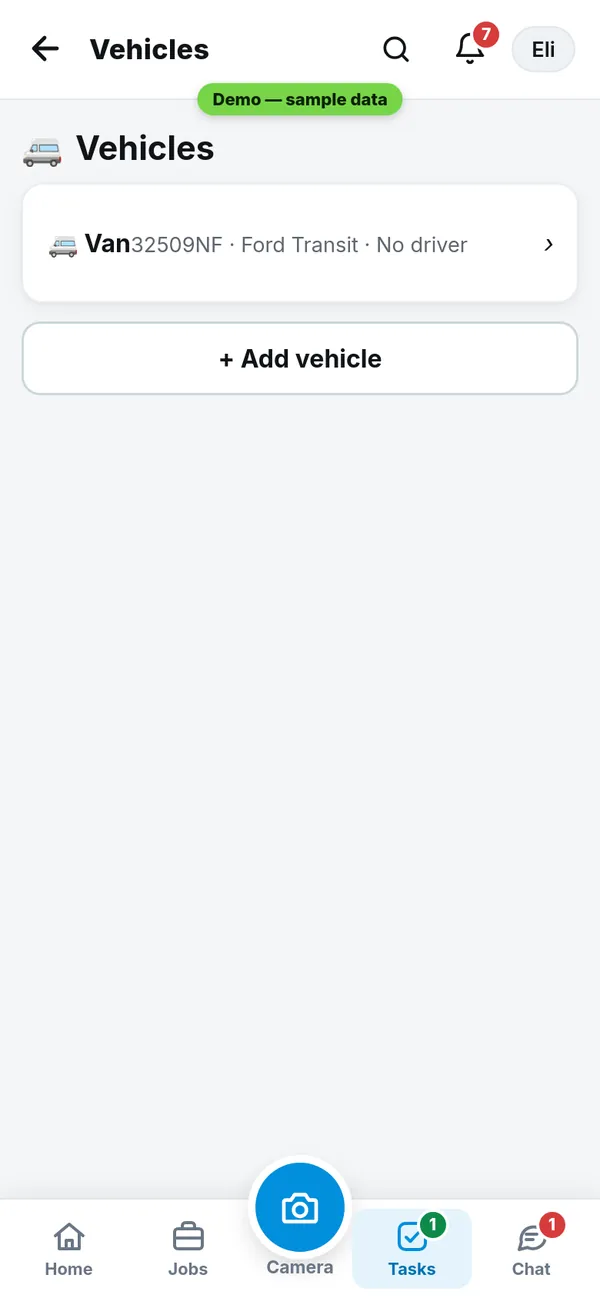
Vehicles
Each van with plate, driver and papers. Plus the parking note for the day: NYC alternate side parking from the city’s own data, and for jobs in other towns a link to that town’s parking rules.
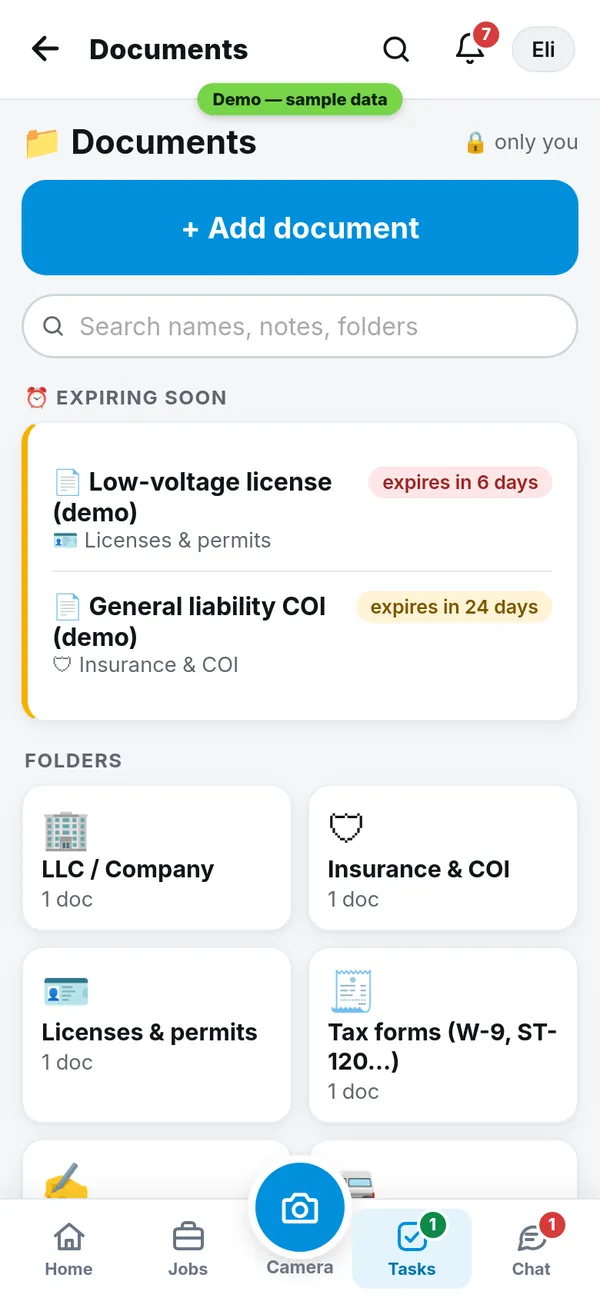
Company documents with reminders
Insurance, licenses, W-9 and more in one place. Set an expiry date and get a reminder 30 days, 7 days and the day of.
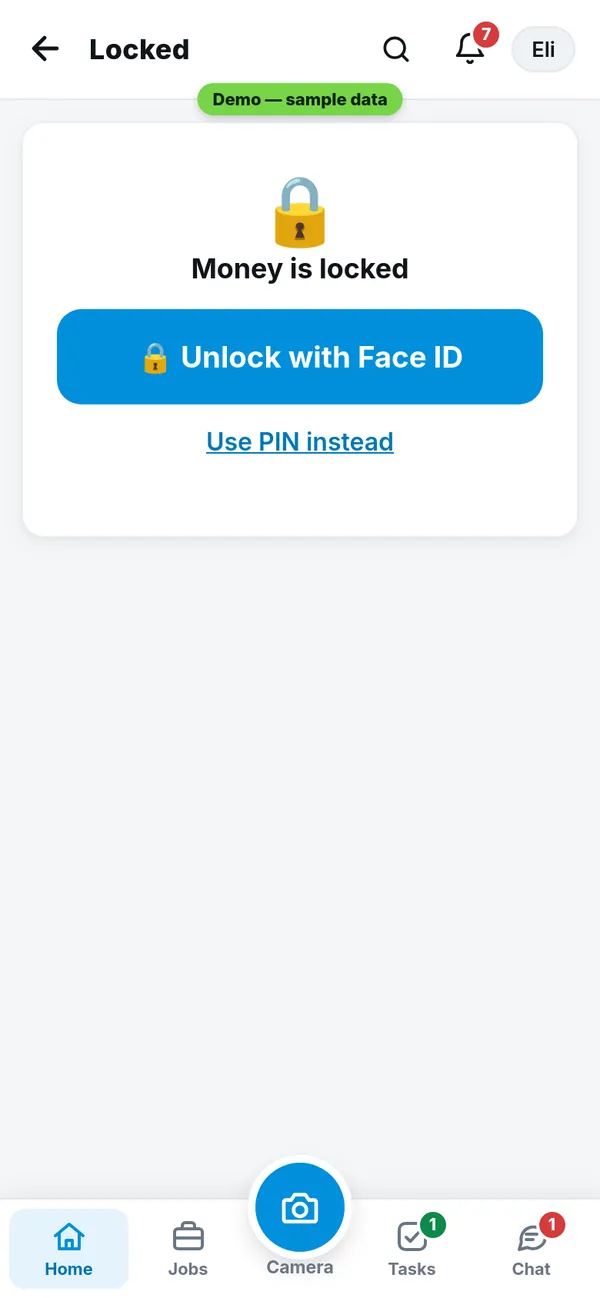
Face ID on money
Prices, profit and bills stay locked. Open them with Face ID or your PIN. They lock again on their own.
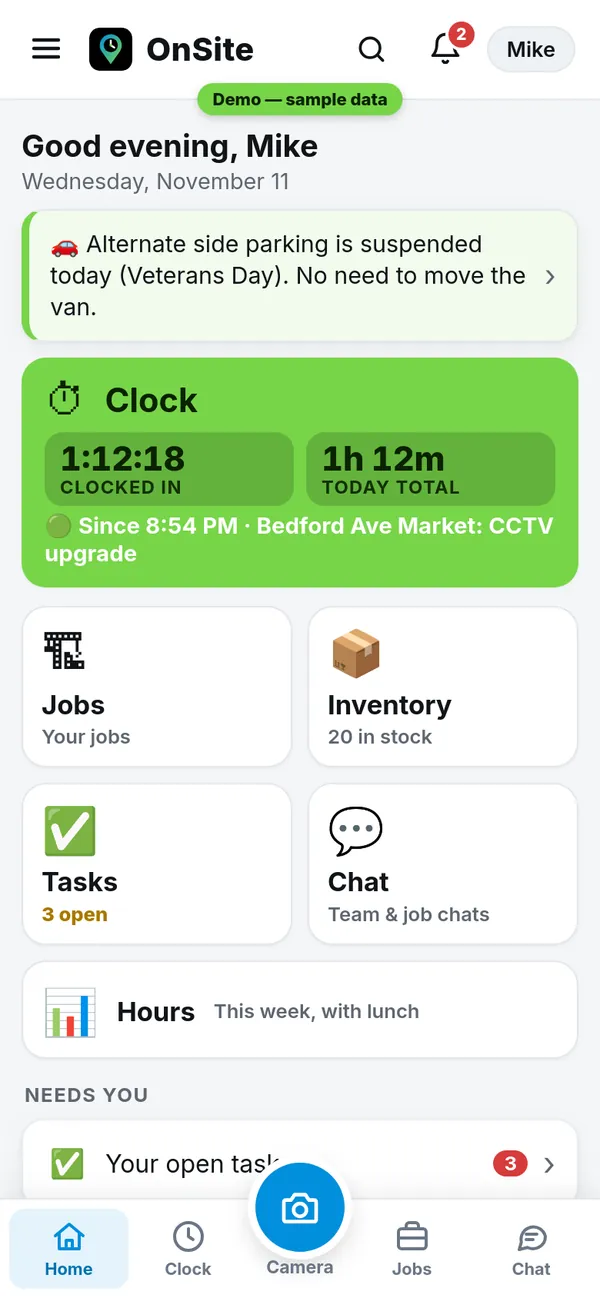
Crew view and owner view
The crew sees their clock, jobs and chat, with no prices. The owner sees everything: who is working, money and bills.
One Settings
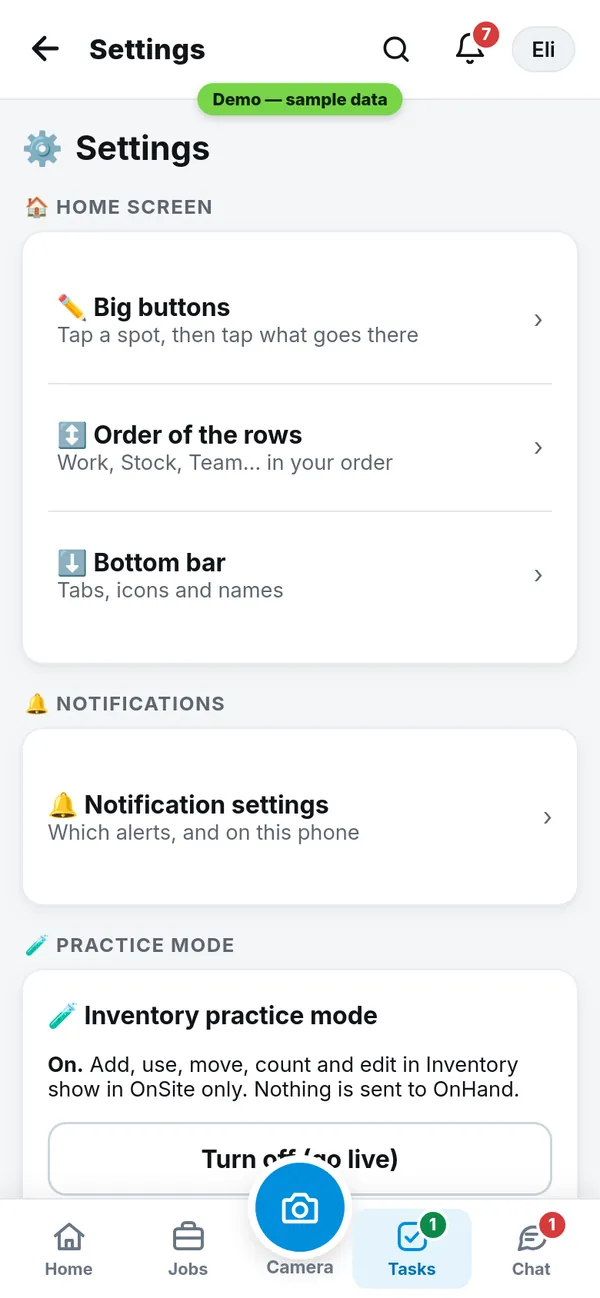
Pick the big buttons on Home and the order. Notifications, Face ID and practice mode are all here too.
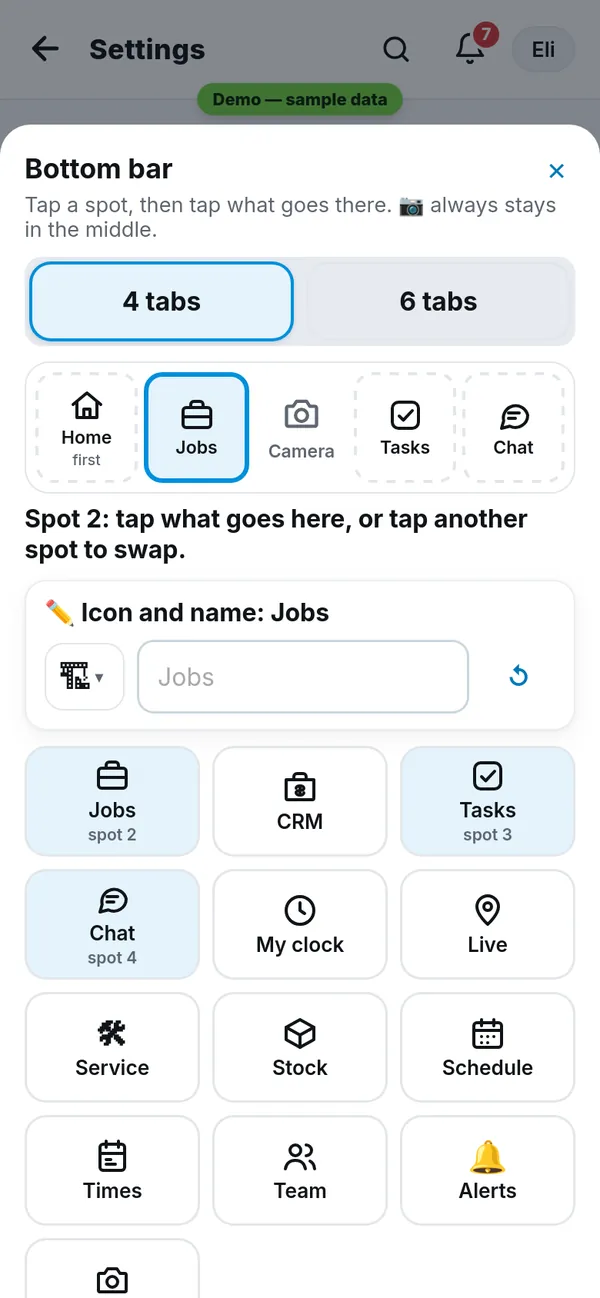
Bottom bar: tap a spot, then tap what goes there, or tap another spot to swap. Pick 4 or 6 tabs, with 📷 always in the middle. Change any tab’s icon and name.
Practice mode
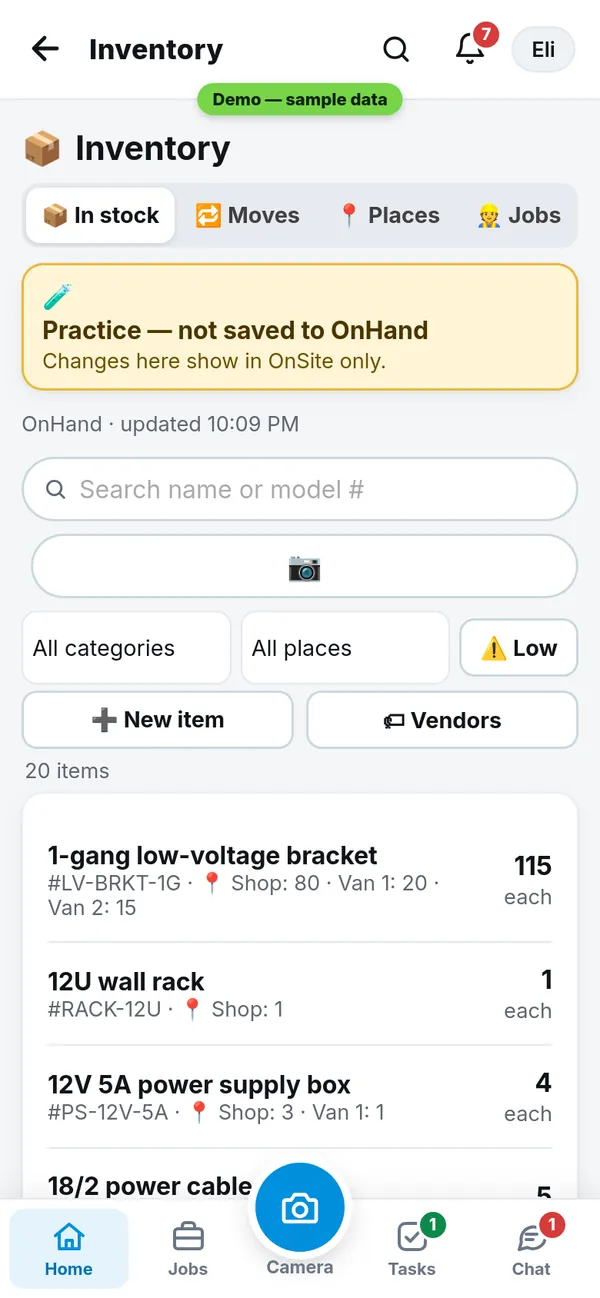
Try anything safely. Stock moves are shown but not sent to OnHand, with a banner so you always know.
Try it yourself
The demo has sample jobs and a sample crew. Tap Try as owner or Try as crew. Nothing there is real.